This browser is not supported. To ensure the best possible user experience, please use one of the following browsers:
Chrome | Firefox | Internet Explorer | Safari | Opera

Support Center

Our frequently asked questions service offers answers to common questions. If you don't find an answer, please contact our customer support and a representative will be able to assist you.

Overview

How do I sign up or activate my account?

Protecht Inc. will create a FanShield account on your behalf. Once created, an email will be sent to you with a link you can use to begin the activation process.

Subject: Activate Hyperwallet Account

Email domain: do.not.reply.hyperwallet.com

If you have been notified by Protecht Inc. that your first payment has been sent but have not received an activation email, click here.

If you have any questions about creating a Payment Portal, please visit Protecht Inc. Help Center or contact Protecht Inc. for support.

How do I change my profile information?
  1. Log in to your Pay Portal.
  2. Click Settings > Profile
  3. Make the changes.
  4. Click Save

If you are unable to update your information, please contact Protecht Inc. directly.

How do I sign up for a Pay Portal account?

Once created, you will receive an activation email containing your account number and a link you may click on to begin the activation process.

What are the supported desktop browsers?
  • Google Chrome : Version 46 and up
  • Safari : Version 8 and up
  • Firefox : Version 42 and up
  • Internet Explorer : Version 11 and up
  • Opera : Version 10 and up

Withdrawing Funds

How can I set up automated transfers to my bank account?

Auto Transfer allows you to set up automatic transfers of the funds from your Pay Portal to your bank account — so that you can set it once and it's done!

In order to set up Automated Transfer, you will need to have a bank account linked to your Pay Portal.

To set up Auto Transfer in your Pay Portal:

1. Click on Transfer in your menu

2. Under Actions: select Create Auto Transfer

3. Select Confirm

  • If you have at least one bank account saved in your Pay Portal, you will see them listed here. If you do not yet have any saved bank accounts, you can add one by clicking on Add New Transfer Method.

Auto Transfer Advanced Options:

Advanced Auto Transfer options allow you to split transfers between 2 or 3 different bank accounts, as well as configure a minimum transfer amount.

  1. Select Transfer in your Menu
  2. Under Actions select Create Auto Transfer
  3. When in the Auto Transfer page, Select the Advanced tab 
  4. Select the account under Transfer Method and set the % field to the right. The total for all chosen Transfer destinations must equal 100%

Note: Under Additional Options you can choose the frequency of your Auto Transfer. You can choose either daily or monthly. If you choose monthly, you can select the date on which the first Auto Transfer is to take place.


Tip:

  • If you would like your incoming payments to be forwarded to your bank account as quickly as possible, select the daily Auto Transfer frequency.
  • Auto currency conversion. If you get paid in a different currency than the currency used by your Transfer destinations, select the currency in which you get paid here. This will ensure that the funds arriving in your Pay Portal are converted and transfer in your local currency. 
  • Minimum Auto Transfer amount. For example, you can set your account to only perform a transfer once you have accumulated a minimum of $100 in payments.


Please note: All Auto Transfer destinations selected must use the same currency. This means that you may not, for example, set one of your Auto Transfer destinations as a USD bank account and another as a CAD bank account.
How can I update automatic transfers to my bank account?
To update Auto Transfer to your bank account:
  1. Click on Transfer from the menu.
  2. Under Action click on Update Auto Transfer for the specific account.
  3. You will now see the details of your Auto Transfer configuration on the Transfer page, along with the options to either Edit or Disable your Auto Transfer.
How do I transfer funds from my Pay Portal to my bank account?

If your organization allows it, you can transfer your Pay Portal balance to any bank account in your country.

To register a new bank account:

  1. Log in to your Pay Portal.
  2. Click Transfer > Add New Transfer Method > Bank Account.
  3. Select your bank from the drop-down list.
  4. Log into your bank account. Please make sure pop-ups are enabled.
  5. You can connect your bank account to the Pay Portal by signing into your bank or by manually entering your bank account routing number, account number, and account type.

To transfer funds to a bank account that has already been registered on your Pay Portal:

  1. Click Transfer > Action > Transfer to Bank Account
  2. Select an option on the “From” dropdown panel.
  3. Enter the amount you would like to transfer and add a personal note (optional). Click Continue
  4. Review your transfer details.
  5. Click Confirm.

To set up an auto transfer, click on Action > Create Auto Transfer.

  1. Choose the Transfer Period and specify the date for monthly transfers.
  2. Choose the destination account and the percentage of the payment to transfer.
  3. If you have multiple Transfer Methods registered, you can allocate a percentage of the transfer amount to each one.
  4. For payments in multiple currencies, payees can click More Options and choose the currencies.
  5. Click Save and Confirm.

Note: Bank transfers can take up to 3 business days to reflect on your account.

Account Management

How can I confirm that my banking information is correct?

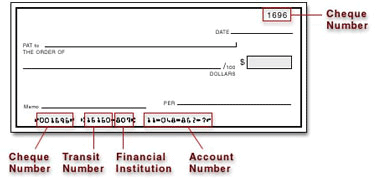
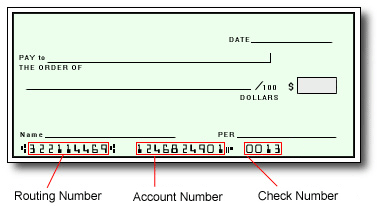
The best way to confirm that you have entered your banking information correctly is to refer to the numbers on the bottom of your check.

In Canada and the United States, your account information would be displayed as shown on the sample checks below:

Canadian Accounts:

American Accounts:

For all other regions, please refer either to your bank statement or contact your financial institution to confirm your banking information.


How do I change my account password?
  1. Log in to your Pay Portal.
  2. Click Settings > Security
  3. Enter your existing password.
  4. Enter and confirm a new unique password.
  5. Click Update Password

Password requirements:

  • At least 1 upper case letter
  • At least 1 lower case letter
  • At least 1 number
  • At least 8-128 characters long
  • At least 1 special character
  • Not used before.
How do I update my bank account information?
  1. Log in to your Pay Portal.
  2. Click Transfer
  3. On the Transfer Center, click Action > Update
  4. Update your account information.
  5. Click Continue
  6. Review your profile information and make updates if required.
  7. Click Confirm

Customer Support

How do I contact Customer Support?
Please refer to the Support tab at the top of the page for support hours and contact information.
I forgot my FanShield password. What should I do?

Please note we do NOT keep a record of your password!

If you have forgotten your password, you may reset it by following these steps:

  1. Click on Forgot Your Password? or Resend Activation Email.
  2. Enter your email address registered with the Pay Portal.
  3. Wait for a password reset email.
  4. Click on the password reset link in the email.
  5. Enter the answers to your security questions (answers are case sensitive).
  6. Enter a new password you have not previously used.
  7. Confirm the new password.
  8. Click on Submit.

Click here if you have forgotten your password


Contact us:

Email Support

Please login and use the form provided under the Support section to send us your question. If you have issues logging in, please contact us by phone.

Telephone

Live customer service representatives are available for support:

English: Monday - Friday: 08:00 AM - 8:00 PM Pacific Time (PT), Saturday and Sunday: 8:00 AM - 5:00 PM PT 
Spanish: Monday - Friday: 08:00 AM - 8:00 PM Pacific Time (PT), Saturday and Sunday: 8:00 AM - 5:00 PM PT 
French and Mandarin Chinese: Monday - Friday:  08:00 AM - 5:00 PM PT

  • U.S.A. / Canada Toll Free: 1-877-546-8220
  • Worldwide: 1-604-638-6657

Chat

Chat support may be available if offered by your company. Please be sure you’re logged in to take advantage of our live chat feature. If you’re logged in already, look for the chat icon in the bottom-right corner of the page.